How to Know Which Shopify Apps Are Slowing Down Your Store
Shopify apps are one of the biggest hidden causes of store slowdown — but identifying which ones are hurting performance isn't obvious. Here's how to find them and what to do about it.
As your Shopify store grows, the performance problems that start showing up are rarely caused by one thing. They're caused by accumulation.
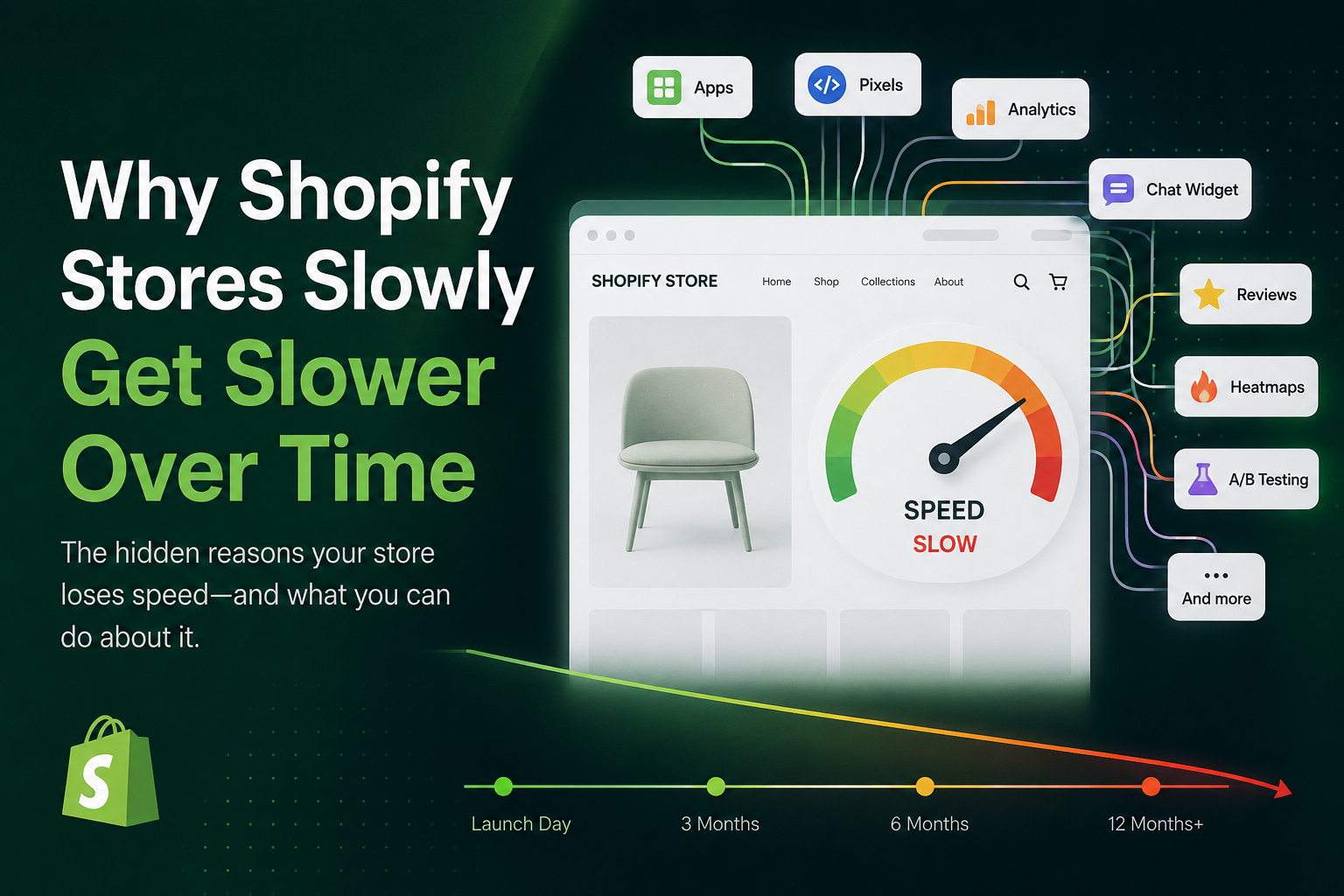
An app adds a script. That script fires network requests. Those requests compete with your theme for browser resources. Another app does the same. Then another. Months later, your store feels sluggish and you're not sure where to start — because none of the individual apps obviously look like the problem.
This is one of the most common and frustrating situations in Shopify performance optimization. Merchants know something is wrong, but they can't see it clearly enough to fix it. This guide is about changing that.
Why Shopify Apps Affect Page Speed in the First Place
Most Shopify apps work by injecting code directly into your storefront. This happens through a few mechanisms:
- Script tags added to your theme's
<head>or<body> - App embeds configured through the Theme Editor
- Theme app extensions that render directly in sections
- Liquid snippets referenced in your layout files
- External JavaScript files loaded from third-party CDNs
When a customer visits your store, every one of these fires. The browser has to download the scripts, parse the JavaScript, execute the code, wait for any external network responses, and then render any UI updates the app triggers — all before your customer can fully interact with the page.
Add enough apps, and that sequence becomes a bottleneck.
What Actually Makes a Shopify App Slow?
Not every app creates the same performance cost. A lightweight wishlist app might add barely any overhead. A personalization engine or session recorder, on the other hand, can significantly degrade your Core Web Vitals on its own. Here's what separates high-impact apps from low-impact ones.
Sitewide JavaScript Injection
Many apps inject their JavaScript globally — across every page of your store — even when their functionality only applies to specific pages. A product review widget might load its scripts on your homepage, blog posts, and collection pages, even though reviews only appear on product pages.
Multiply this across several apps and you're loading a significant amount of unnecessary JavaScript on every single page view. This increases main-thread blocking, CPU usage, and overall JavaScript bundle size — all of which slow down the experience for your customers.
Excessive Third-Party Network Requests
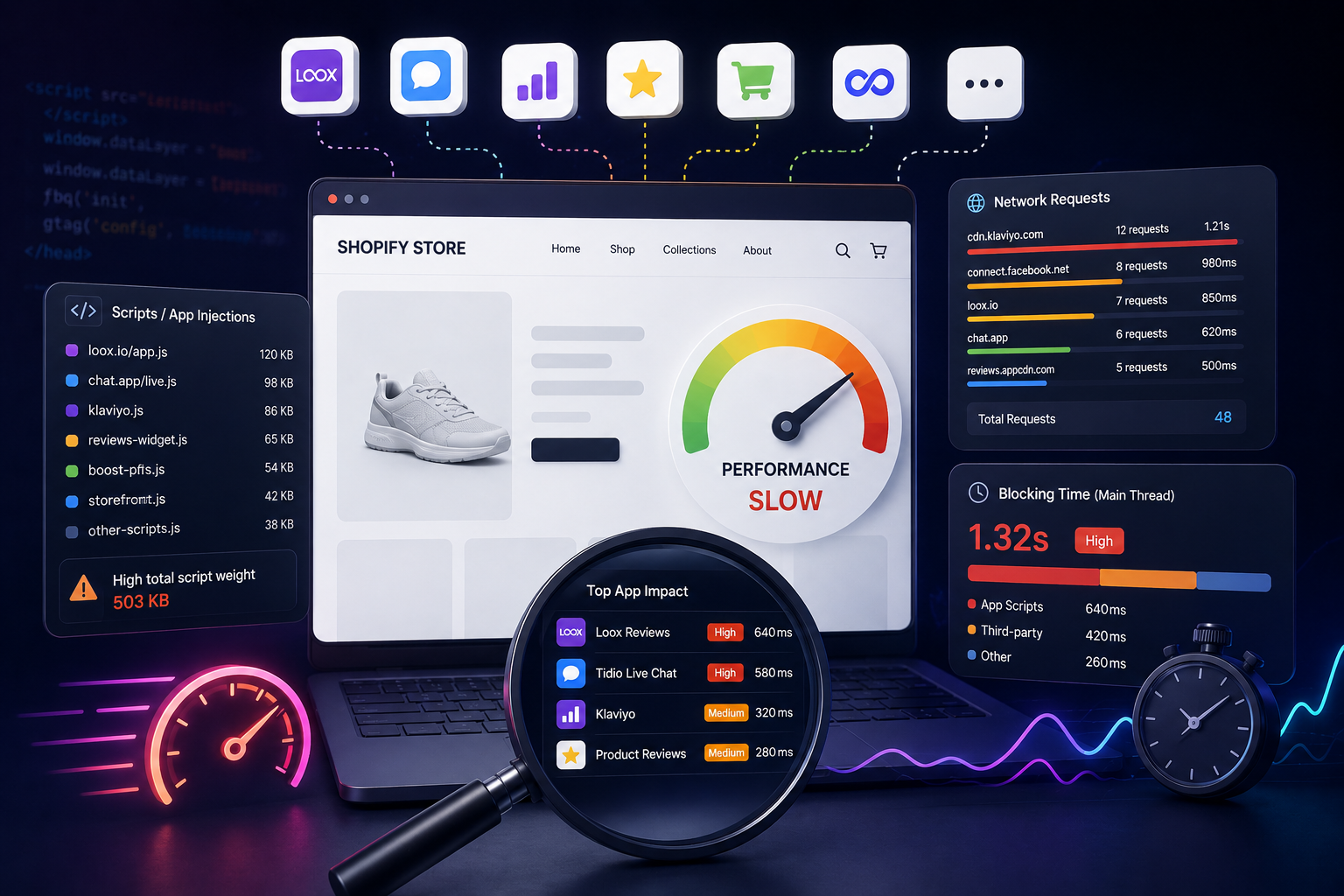
Apps frequently depend on external servers. When your page loads, the browser may simultaneously reach out to analytics providers, recommendation engines, tracking platforms, chat systems, CDN endpoints, and A/B testing services — all on behalf of installed apps.
Each of those requests adds latency. Some apps trigger dozens of network calls before the page becomes interactive. This is one of the clearest signals when you're trying to detect which Shopify apps are hurting your store's performance.
Third-party requests
40–80+
typical on a store with 10+ apps
Render-Blocking Scripts
Some app scripts load synchronously, which means the browser pauses rendering entirely while it waits for the script to download and execute. This directly degrades your First Contentful Paint (FCP) and Largest Contentful Paint (LCP) — the metrics that determine how fast your store feels to customers and how Google evaluates it for search rankings.
Customers experience render-blocking scripts as blank screens, delayed product images, and sluggish cart interactions. It's one of the most damaging performance issues a Shopify store can have, and it's almost always caused by third-party app code.
Main Thread Blocking Time
JavaScript runs on the browser's main thread. When an app runs heavy scripts — personalization logic, dynamic filtering, session replay, upsell calculations — it can monopolize that thread and block everything else.
This creates what Chrome DevTools calls "long tasks": stretches of execution that prevent the browser from responding to user input. A customer tapping "Add to Cart" on a mobile device during a long task gets no immediate response. That hesitation erodes trust and drives abandonment.
TBT target
< 200ms
many stores with heavy apps exceed 600ms+
How to Detect Which Shopify Apps Are Affecting Your Performance
The real activity happens in the browser, not in your Shopify Admin. Here's how to get visibility into what's actually loading.
Inspect the Network Tab in Chrome DevTools
Open your storefront in Chrome, right-click, choose Inspect, and navigate to the Network tab. Reload the page and watch what loads. Filter by "Script" to focus on JavaScript.
You'll often find:
- Requests to unfamiliar third-party domains
- Large JavaScript payloads from app CDNs
- Multiple tracking pixels firing in sequence
- Slow-responding external APIs
- Duplicate versions of common libraries (jQuery, for example, loaded twice)
A single Shopify product page can trigger well over a hundred network requests. A significant portion will originate from installed apps.
Run a Lighthouse Audit
Chrome's built-in Lighthouse tool (available in DevTools under the "Lighthouse" tab) gives you a structured performance breakdown including:
- Total Blocking Time (TBT) — how long third-party scripts block interactivity
- Long Tasks — individual scripts that took over 50ms to execute
- Render-blocking resources — scripts preventing first paint
- JavaScript execution time — total CPU cost of all scripts
The "Opportunities" and "Diagnostics" sections often call out specific third-party scripts by domain, which makes it easier to trace them back to specific apps.
Look for Sitewide Injection on Pages That Don't Need It
Visit a page where an app's functionality clearly doesn't apply — say, your blog or a basic collection page — and check the Network tab. If you see scripts from a review app, a cart upsell tool, or a loyalty widget loading there anyway, you've found an app injecting globally when it doesn't need to.
This kind of unnecessary loading is one of the most common hidden causes of Shopify slowdown, and it's entirely fixable once you can see it.
App Categories That Commonly Hurt Shopify Performance
While every app is different, certain categories consistently show up as high-impact in performance audits:
Tracking & Analytics — Multiple pixels, heatmaps, session replay tools, and conversion tracking scripts each add network overhead and main-thread cost. Stores with 5+ tracking integrations often see significant TBT degradation.
Visual Enhancement Apps — Sliders, animated popups, floating widgets, and countdown timers tend to include heavy JavaScript and can introduce Cumulative Layout Shift (CLS) if not implemented carefully.
Personalization & Merchandising Engines — AI-powered recommendations, dynamic search, and upsell systems require real-time computation and often trigger multiple API calls per page load.
Customer Support Widgets — Live chat tools are notoriously heavy. Many load their full interface JavaScript even on pages where chat is never opened.
Why Shopify App Performance Problems Are Hard to Diagnose Manually
The cumulative nature of the problem is what makes it so difficult to catch. No single app looks obviously catastrophic in isolation. But together, they create:
- Network congestion from too many simultaneous requests
- CPU contention as scripts compete for the main thread
- Layout instability from multiple DOM-manipulating widgets
- JavaScript overload that delays every user interaction
Most stores degrade gradually over many months. By the time the slowdown is noticeable, the root cause is buried in a tangle of overlapping scripts — and untangling it manually is a real project.
This is exactly why continuous, automated monitoring makes such a difference. Rather than running a one-time audit when performance is already bad, StoreOwl tracks your storefront's script payload and blocking time daily — so you can see the moment a new app install changes your performance baseline, before it compounds into a bigger problem.
How to Reduce the Performance Impact of Shopify Apps
Audit Your App List Quarterly
Every installed app represents a performance tradeoff. The question is whether the business value justifies the cost. For each app, ask:
- Is this app actively being used by the team?
- Does it load on every page, or just where it's needed?
- Has anyone verified it's still necessary in the last 90 days?
- Is there a lighter alternative, or can Shopify's native features handle this now?
Clean Up After Uninstalls
Removing an app from your Shopify Admin does not remove the code it injected into your theme. After any uninstall, manually check:
theme.liquidfor leftover<script>tags- The Snippets directory for orphaned Liquid files
- App embeds in the Theme Editor
- Any app blocks still referenced in section files
Ghost code from uninstalled apps is one of the most overlooked sources of ongoing performance drag.
Reduce Tracking Script Sprawl
Marketing teams often add pixels without visibility into the cumulative impact. Maintain a centralized log of every tracking script on your storefront and audit it alongside your app list. Remove pixels for platforms you're no longer actively using, and consolidate where possible.
Monitor Continuously — Not Just When Something Feels Wrong
A one-time Lighthouse audit gives you a snapshot. It doesn't alert you when a new app install bumps your TBT by 120ms, or when a theme update quietly adds a render-blocking script.
StoreOwl monitors your Shopify storefront automatically on a daily basis — tracking app payload, third-party requests, and blocking time so you always know where your performance stands. Instead of diagnosing problems after they've already hurt your conversion rate, you catch them the day they appear.
Key Takeaway
Shopify app performance problems are almost never the fault of a single bad actor. They're the result of many reasonable decisions — each made in isolation — that collectively overload the browser. Getting visibility into what's actually loading on your storefront is the first step to fixing it.
Once you can see which apps are injecting scripts, which ones are triggering the most network requests, and which ones are blocking your customers from interacting with your store — optimization becomes straightforward. The hard part is getting that visibility in the first place. Start with a free StoreOwl scan and see what your storefront is actually loading.