Shopify Speed Optimization: What Actually Moves the Needle (And What Doesn't)
Most Shopify speed advice focuses on the wrong things. Image compression and theme swaps rarely fix the real problem. Here's what actually impacts your store's performance — and what to do about it.
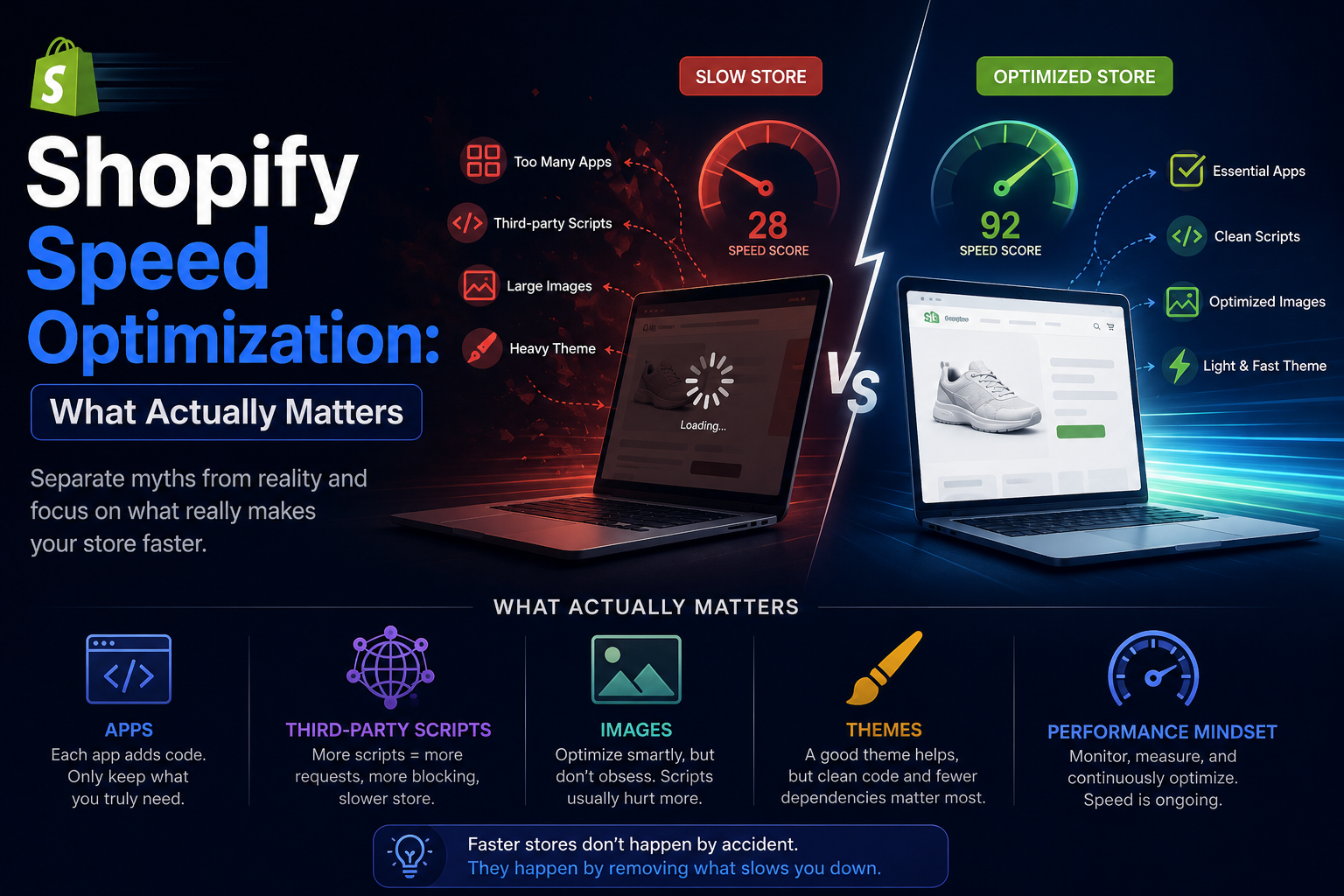
Search "how to improve Shopify speed" and you'll get a lot of the same advice: compress your images, remove unused apps, buy a faster theme, minify your CSS, use fewer animations.
Some of this is genuinely useful. Some barely moves the needle. And some of it is just recycled advice that misses the actual cause of most Shopify slowdowns.
The core problem is that Shopify speed optimization gets treated like a checklist — a set of one-time tasks you complete and move on from. Real storefront performance doesn't work that way. It's a system that changes every time you install an app, add a pixel, or update your theme. Understanding what actually drives slowdown is what separates stores that stay fast from stores that gradually deteriorate.
Why Shopify Stores Become Slow Over Time
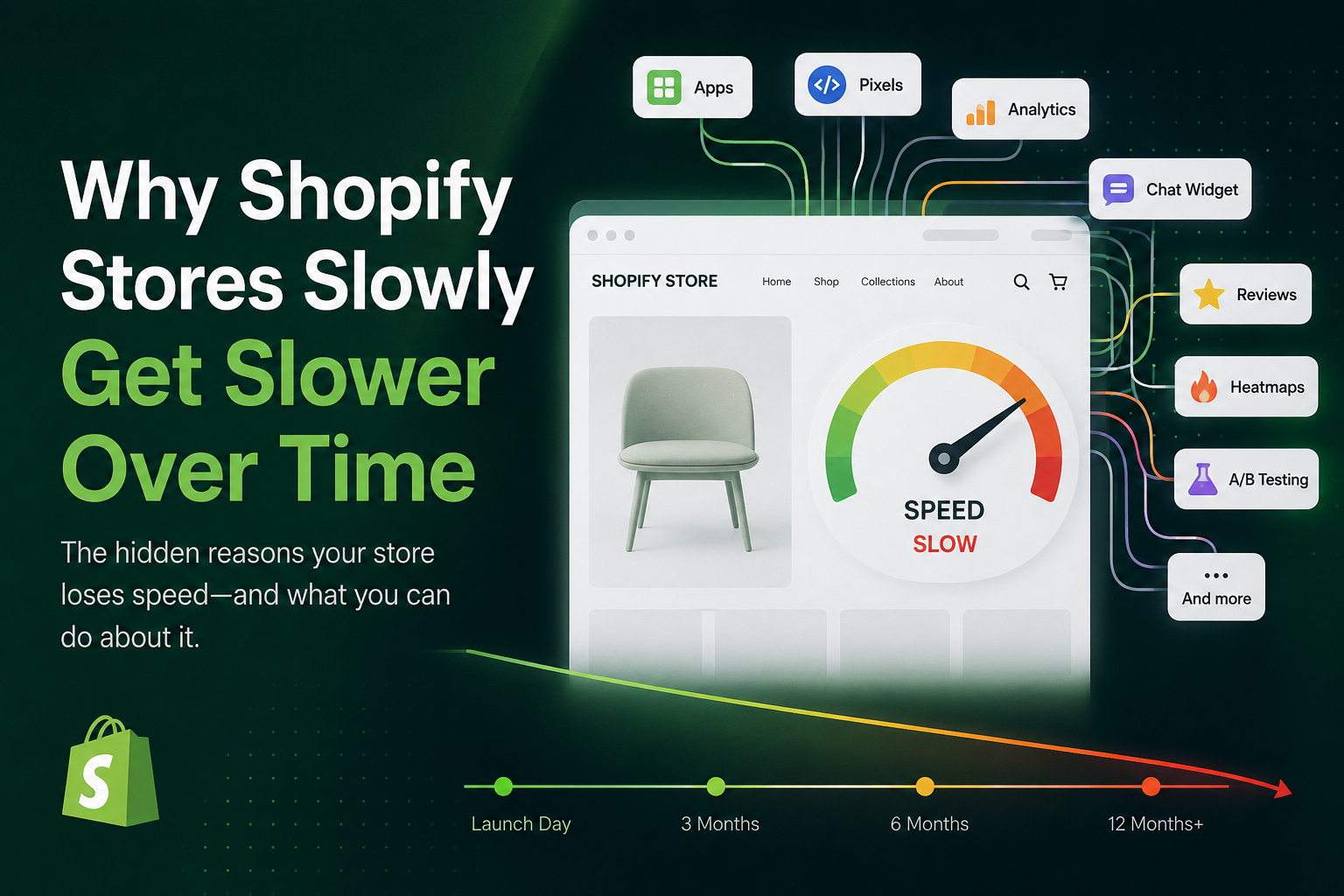
Most stores don't launch slow. Performance degrades as they grow.
Every app installation, marketing integration, tracking pixel, and theme customization adds to the browser's workload. Individually, these additions seem harmless. Collectively, they create a storefront that customers experience as slow, laggy, and unresponsive — especially on mobile.
By the time merchants start searching for "why is my Shopify store slow," the problem is almost always cumulative. There's no single bad decision. There's just months of incremental additions that nobody audited along the way.
What Actually Matters for Shopify Speed
Third-Party Scripts — Not Images — Are Usually the Real Bottleneck
Image optimization gets a lot of attention. It's visible, intuitive, and easy to act on. But in most modern Shopify stores, JavaScript is a far bigger performance constraint than image size.
While you're compressing product photos, your storefront might be simultaneously loading:
- Multiple analytics and heatmap scripts
- Live chat and support widgets
- Retargeting and conversion tracking pixels
- Recommendation engine JavaScript
- A/B testing and personalization tools
These scripts compete for CPU time, block the browser's main thread, trigger additional network requests, and delay interactivity. A perfectly compressed image won't meaningfully help a customer whose browser is spending 800ms executing third-party JavaScript before the page becomes interactive.
JavaScript impact
~70%
of TBT on most Shopify stores comes from third-party scripts
This doesn't mean images don't matter at all. It means the order of priority should reflect where the actual performance cost lives — and for most stores, that's scripts first, images second.
Apps Are One of the Biggest Contributors to Shopify Slowdown
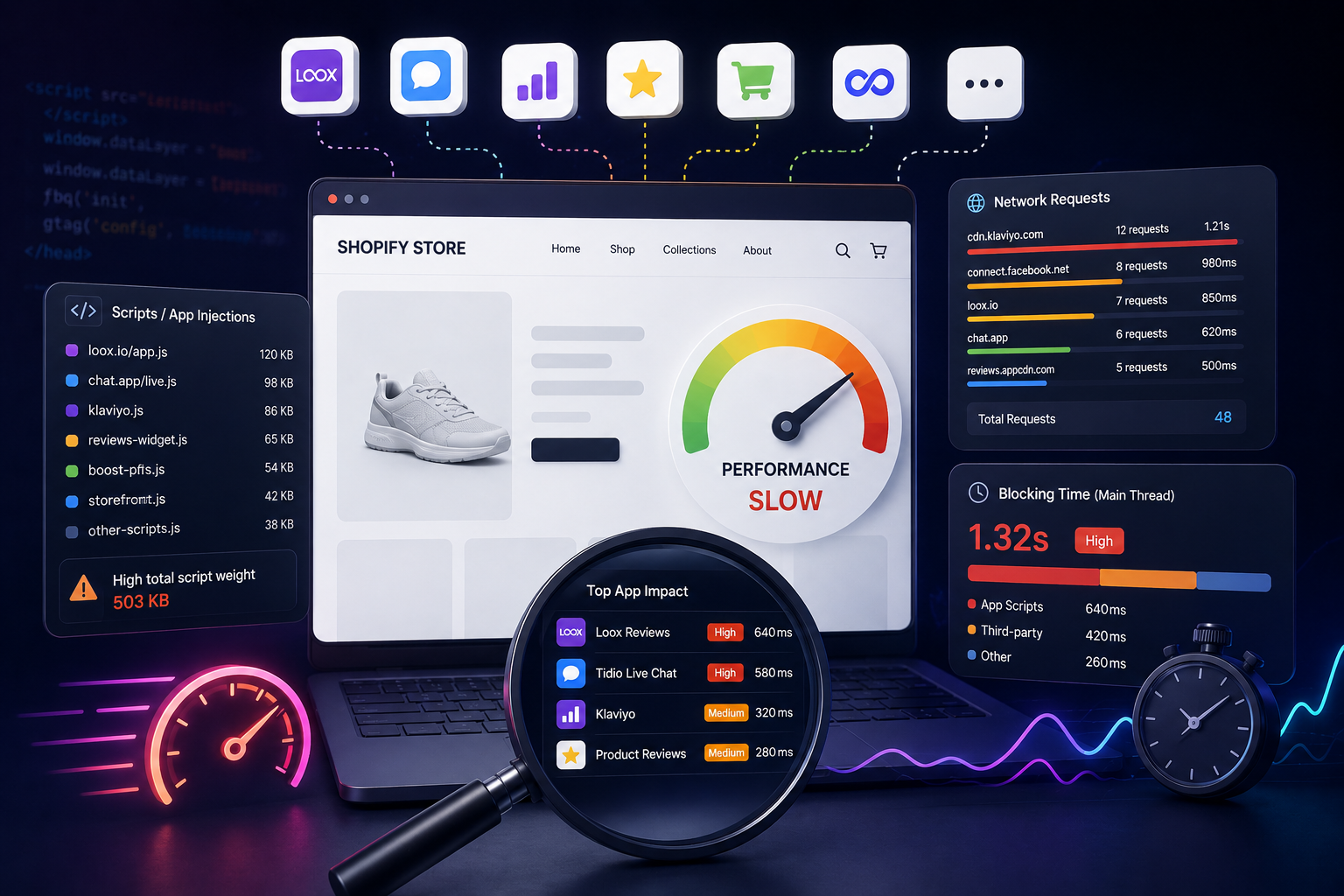
Every Shopify app that touches your storefront injects frontend code. JavaScript bundles, CSS files, API requests, DOM manipulation, dynamic rendering — all of it runs in the customer's browser, on every page load.
The more apps installed, the more the browser has to process before your customer can interact with your store. This is one of the most consistently overlooked parts of Shopify speed optimization, partly because it's invisible from the Shopify Admin.
What makes apps particularly problematic:
- Most load their scripts globally across all pages, even when only needed on specific ones
- Many trigger additional network requests to external servers after the initial page load
- Some continue executing JavaScript in the background long after the initial render
- Uninstalled apps frequently leave code behind that keeps loading even after removal
StoreOwl makes this visible by scanning your storefront daily and tracking exactly which scripts are loading, how large they are, and how much blocking time they're contributing — so you can see the impact of each app on your actual performance baseline.
Theme Choice Matters — But Less Than Most People Think
"Just switch to a faster theme" is one of the most common pieces of Shopify speed advice, and it's not wrong — but it's frequently overweighted.
A lightweight theme can become slow almost immediately if it's loaded with apps, tracking pixels, and marketing integrations. And a feature-rich theme can still feel responsive if the overall storefront stays lean and well-monitored.
Theme architecture does matter. Poorly written themes can include render-blocking scripts, excessive animations, and bloated JavaScript bundles. But theme choice is rarely the primary lever for stores that have accumulated years of app installations and tracking integrations. Those need to be addressed first.
Mobile Performance Is Where Problems Actually Show Up
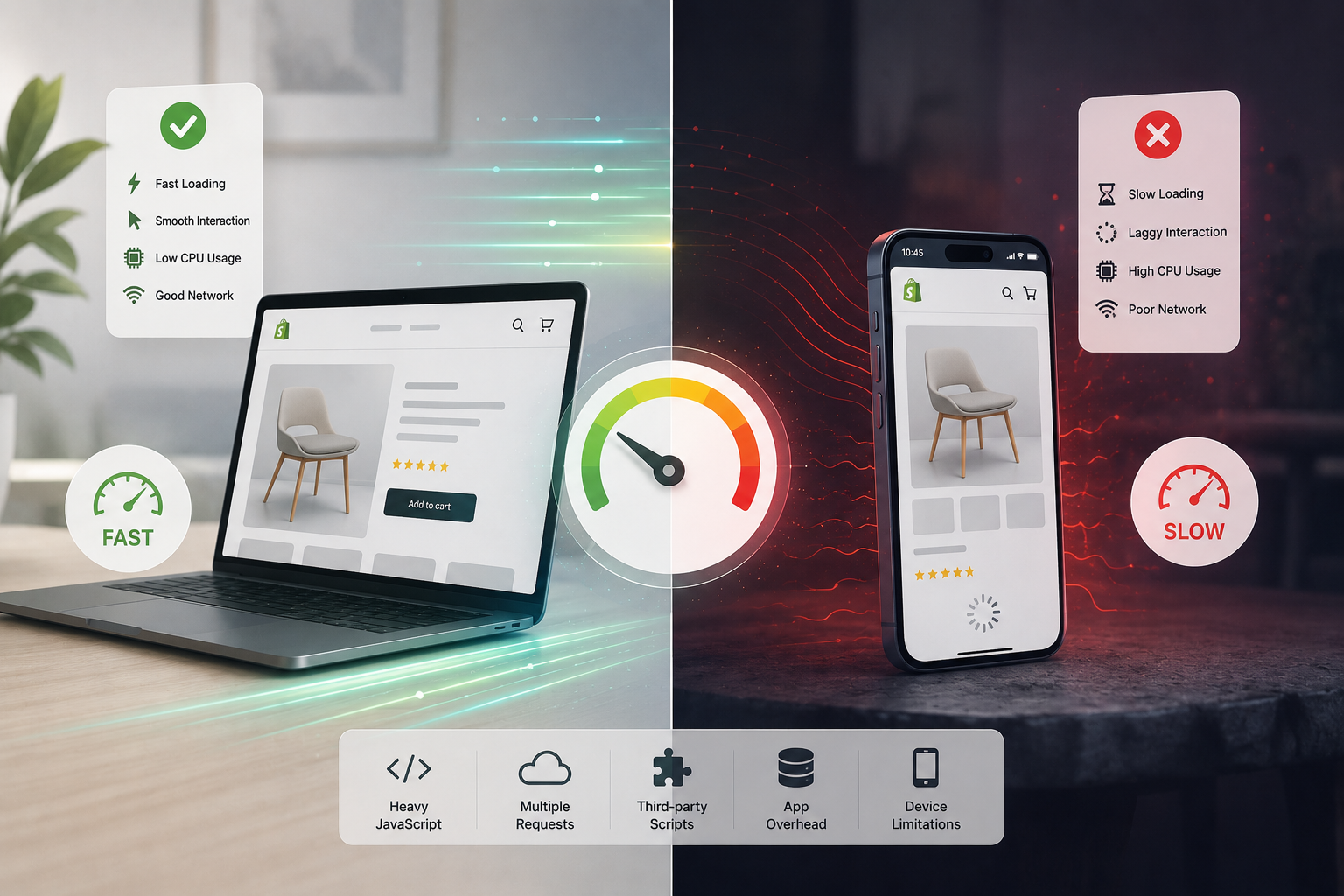
Most Shopify performance testing happens on desktop, which systematically hides real problems. Desktop devices have faster CPUs, better memory, and more reliable network connections — which means they can absorb performance overhead that would noticeably degrade a mobile experience.
The majority of ecommerce traffic is mobile. Mid-range phones — the devices most of your customers are actually using — struggle with:
- Heavy JavaScript execution that ties up the main thread
- Multiple simultaneous third-party network requests
- Large script bundles that take longer to parse and execute
- Dynamic DOM updates from apps running in the background
A store that looks "fine" in desktop Lighthouse often reveals its real performance problems when tested on a Moto G or mid-range Android device on a 4G connection.
Too Many Network Requests Create Invisible Overhead
A modern Shopify page can easily trigger 100–200 network requests. Many of those come from apps contacting their own servers — for analytics events, personalization data, recommendation queries, and tracking calls.
Each request adds latency. When multiple requests happen in parallel, they compete for bandwidth. When they happen sequentially, they delay each other. Either way, the customer waits.
Reducing unnecessary third-party requests — by auditing apps, removing unused integrations, and eliminating redundant tracking — often produces more noticeable improvements than micro-optimizations like CSS minification or font subsetting.
Network requests
100–200+
typical on stores with 10+ apps installed
Common Shopify Speed Optimization Myths
Myth: "Image Compression Will Fix My Slow Store"
Images matter, and you should optimize them. But modern browsers and Shopify's CDN already handle a significant amount of image optimization automatically. If your store's primary performance problem is JavaScript execution and third-party script bloat, compressing images is the equivalent of cleaning your desk when the building needs structural repairs.
Myth: "A High PageSpeed Score Means a Fast Store"
Lighthouse scores are a useful diagnostic tool, but they can be gamed and they don't always reflect real-world user experience. Some stores optimize specifically for benchmark conditions while still feeling sluggish during actual browsing — particularly on product pages with dynamic content, interactive carts, and personalization features running in the background.
What your customers experience matters more than your PageSpeed number. Both are worth measuring, but don't let chasing a score substitute for understanding what's actually happening in the browser.
Myth: "Installing an Optimization App Will Speed Things Up"
Some optimization apps genuinely help. Others add their own JavaScript, increase network activity, and make the underlying problem worse. Before installing any optimization tool, check what it actually loads on your storefront. An app that adds 50ms of blocking time while claiming to improve your score isn't a net win.
Myth: "Removing One App Will Fix Everything"
Shopify performance problems are almost always cumulative. There's rarely a single villain. The slowdown usually comes from the combined weight of several reasonable decisions — a chat widget here, a heatmap there, a loyalty app, a review tool — none of which looked problematic in isolation.
That's what makes diagnosis so difficult without proper tooling. When every app looks reasonable individually, you can't see the problem until you look at them all together in the browser.
What Actually Improves Shopify Speed
Audit Your Installed Apps — Regularly
Make this a quarterly habit, not a one-time cleanup. For each installed app, ask:
- Is this actively being used by the team?
- Does it justify its performance cost with measurable business value?
- Does it load globally across all pages, or only where it's needed?
- Has anyone reviewed whether Shopify's native features now handle what this app does?
Apps that don't have clear, current answers to these questions are candidates for removal.
Reduce Third-Party Script Sprawl
Marketing stacks grow fast and shrink slowly. Tracking pixels get added when campaigns launch and rarely get removed when those campaigns end. Maintain a centralized log of every third-party script on your storefront and audit it alongside your app list. Duplicate analytics, unused pixels, and redundant widgets are common culprits that are easy to eliminate once you can see them.
Monitor JavaScript Growth Over Time
JavaScript payload is one of the clearest leading indicators of Shopify performance degradation. As it grows, so does blocking time, execution time, and the gap between how your store feels on desktop versus mobile.
Tracking script size and blocking time on a regular cadence — rather than running a one-off audit — means you catch regressions immediately, before they compound. StoreOwl does this automatically on a daily basis, giving you a running view of your storefront's script payload and app impact over time.
Prioritize Mobile Testing
Always test performance on actual mobile conditions, not just desktop. Use CPU throttling in DevTools, test on real mid-range devices, and pay attention to interaction metrics — not just initial load time. Slow cart interactions, laggy search, and hesitant "Add to Cart" buttons are mobile problems that desktop testing won't surface.
Clean Up After Every App Uninstall
After removing any app from Shopify Admin, do a manual audit of your theme files:
- Check
theme.liquidfor leftover<script>and<link>tags - Review the Snippets folder for orphaned Liquid files
- Open the Theme Editor and check App embeds for anything still toggled on
- Search theme files for any references to the app's domain or script URLs
This takes 15–20 minutes and prevents performance debt from accumulating silently.
Key Takeaway
Shopify speed optimization isn't a checklist you complete once. It's an ongoing practice of understanding what's actually running on your storefront and making deliberate decisions about what earns its place there.
The stores that stay fast aren't the ones that found the perfect theme or compressed their images to the smallest possible size. They're the ones that continuously monitor script growth, audit their apps honestly, and catch performance regressions early — before they compound into something that quietly costs them conversions every day.
That's the optimization mindset that actually works. Start with a free StoreOwl scan to see what your storefront is actually loading right now.